Help Article
Project Collaborators

Who can use this feature?
By default, Project module users
Purpose
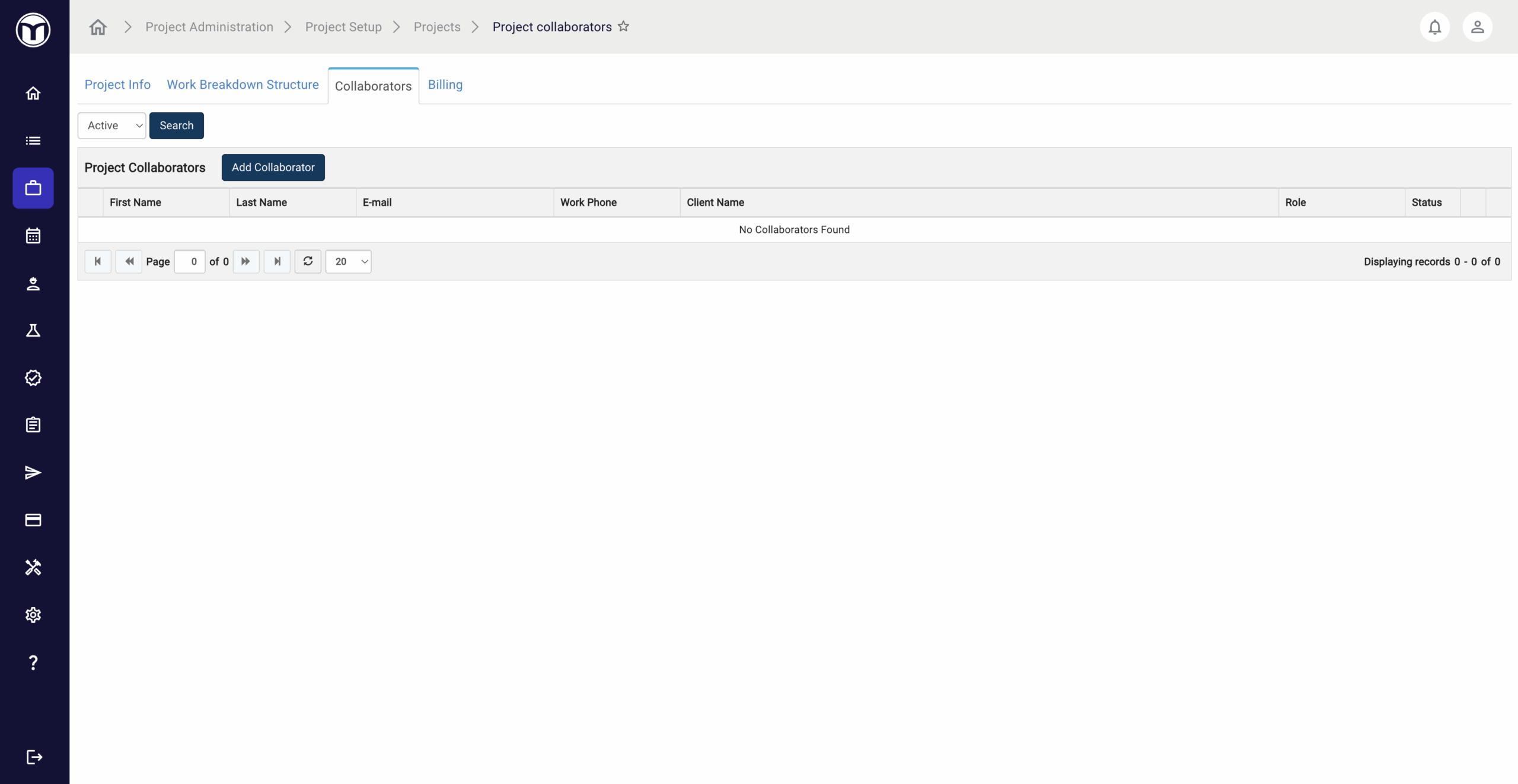
Within Project Setup, you can access a tab for Collaborators. This area lets you add details on important people related to the project (including their company, contact, and role). This allows MetaField users to quickly access info on these important contacts.
The Project Collaborators list is used to manage key project supporters, like contractors and architects. This list is not meant for sending project updates. To create a distribution list of client contacts to send project updates to, go to Projects → Specifications → View Specifications → Distribution.
Available actions
- Add collaborators for each project
- Search collaborators by status (Active, Inactive, etc.)
- Manage existing collaborators as needed (edit, delete, etc.)
Adding Project Collaborators: What to Expect
Only existing client contacts can be selected as collaborators. To add a new client contact, visit Project Setup → Clients and Contacts → Client Contacts and press Add or Upload Contact. From there, follow these steps to add that contact as a collaborator:
- Select the Project module > Project Setup
- Click Projects then search for your project
- Click the Edit pencil to open the Project Info screen, then press the Collaborators tab
- Press Add Collaborator and enter their info, then press Save


Once saved, this contact will be added as a collaborator to the project.
Adding Collaborator Roles
When adding a collaborator, you can pick their role from a pre-selected list. To add a new collaborator role to this list, head to Admin > Project Setup > Collaborator Roles and press Add Role.
Want to keep learning?
Click here for more how-to articles and MetaField guides. You can also access in-app guidance using the Help Desk!