Help Article
Lifecycle of an Activity Record

Purpose
Activity records are highly flexible, allowing virtually any type of data to be gathered and reported. All customization begins in the Admin module, where an Administrator must create an Activity form. This form defines what data will be collected - as well as options for how data is entered, reviewed, and reported.
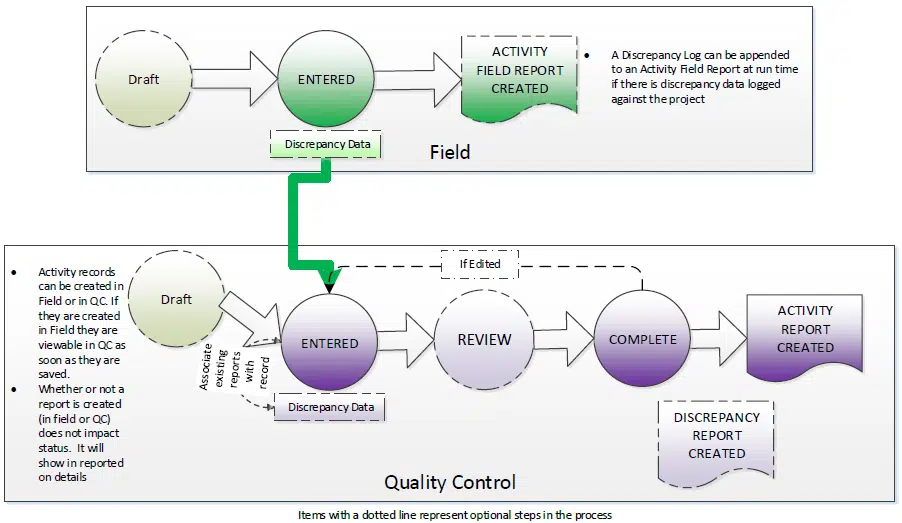
Once the Activity form is built, users can begin creating Activity records in the Field or Review (QC) modules, following the workflow described below. This illustration shows the basic lifecycle of an Activity record, including optional steps, like reviewing Activity records in Review (QC):
For Field Users
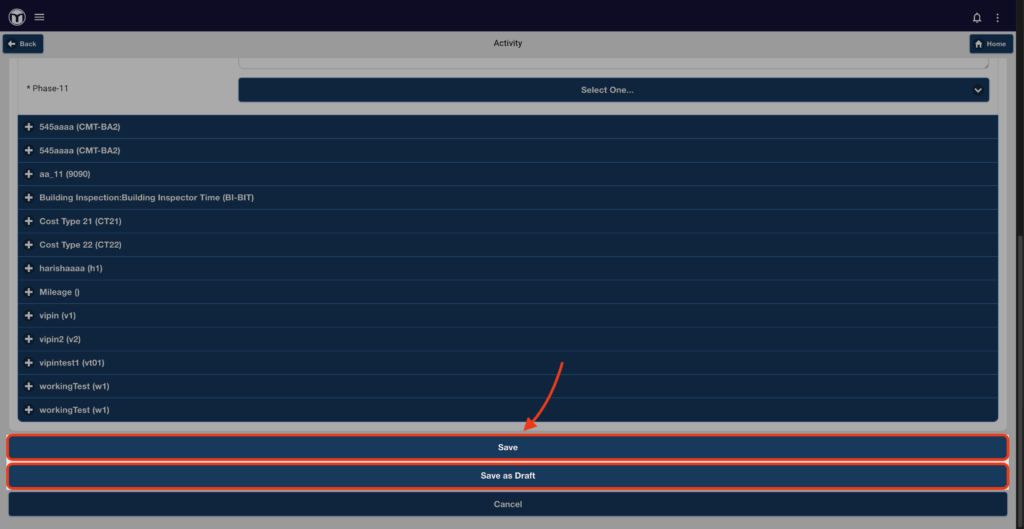
In the Field module, users can create Activity records and either Save them if fully entered, or Save as Draft. Drafts can be re-opened and completed from [Activity] > [Manage Activities].
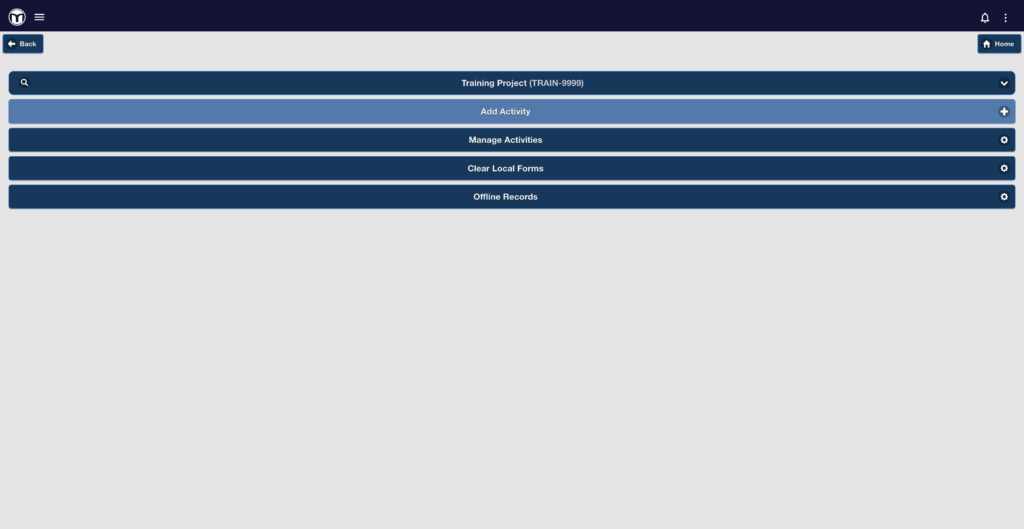
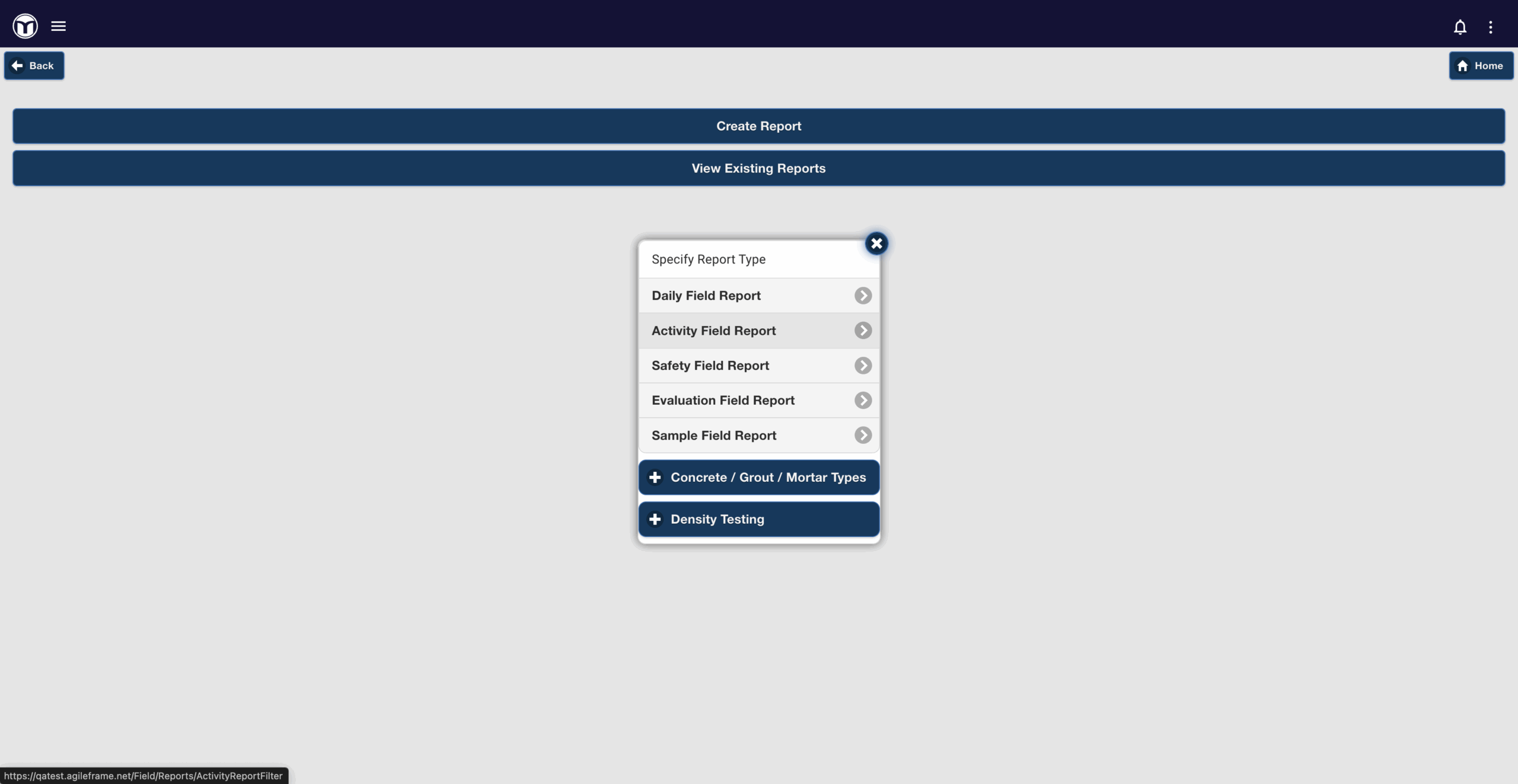
If the Administrator has configured the form to include Discrepancy Data, that data is automatically created as part of the Activity record. Field users can also generate a Field Activity Report containing one or many Activity records in [Field] > [Field Reports]. If discrepancy data has been collected for the project, a Discrepancy Log can be appended to the Field Report.

For Project Managers - Review (QC)
Once an Activity record is created, it becomes immediately visible in Review (QC) for the PM. Activity records can also be created directly within Review (QC). This can be helpful for more complex forms that are easier to input on a PC vs. a mobile device. Activity records have the following statuses:
- Draft / Entered: The record is saved but not yet reviewed
- Review: Optionally set by the Project Manager to flag the record for follow-up or highlight it on their dashboard
- Complete: Indicates the record is finalized and ready to appear on an Activity Report
If an Activity Record is later edited (for example, to update a discrepancy), its status will automatically revert to Entered. From Review (QC), users can also create Discrepancy Reports. These reports include all discrepancy data tied to the Activity record, regardless of the record’s current status.

Activity Home Tile
The Activity Home Tile provides visibility into key Activity metrics, including the number of Activities Entered (i.e., not reviewed yet), Not Reported, Open Discrepancies, etc. This tile helps users track all Activity records, and ensure each one is ultimately reported to the client.
For more info on Home Tiles and how to add them to your home screen display, see the full Help Article.


Want to keep learning?
Click here for more how-to articles and MetaField guides. You can also access in-app guidance using the Help Desk!